This opens up a note field where information can be added. The note type defaults to patron. Make sure to select staff rather than public.
Any information can be added to a patron note. For example, a note can be added alerting staff that a patron has signed the Reserve Agreement Form. In order for the note to “pop-up” it must be prefaced by an exclamation point (!). After entering the information in the note field, be sure to click the Save button underneath the note. The Save button turns light red when the cursor is over it.

A new screen pops up to let staff know that the note has been added to the patron's record. Click the OK button to return to the patron's profile.

The pop-up note will be displayed in the patron's Checkout record/screen. If you get the message that the Notes were successfully updated, but do not see the note in the Checkout screen, refresh your browser.
Below, a patron record with a note successfully added.

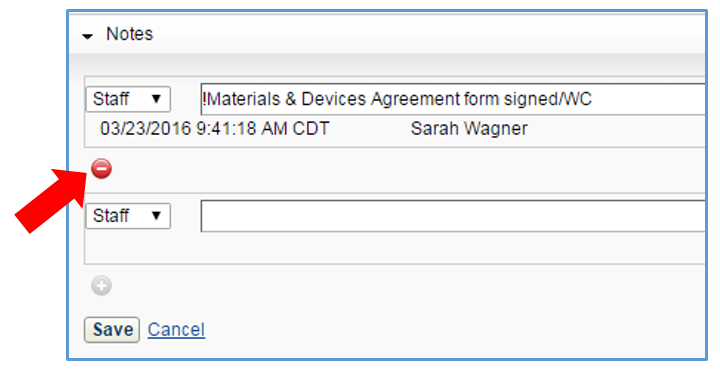
To delete a note from the patron record, open the patron profile and click Edit on the Notes tab. Place the cursor on the button under the note you wish to delete. The button turns red. Click to delete. Don't forget to click Save!
Metro Campus Library: 918.595.7172 | Northeast Campus Library: 918.595.7501 | Southeast Campus Library: 918.595.7701 | West Campus Library: 918.595.8010
email: Library Website Help | MyTCC | © 2025 Tulsa Community College
